How to install MakeIt4Me on another computer
Sign in to the customer portal with the email you bought with, download makeit4me.zip, install it the same way as on your first computer and paste in the same license key. One license works on up to 3 computers at a time.
1. Sign in to the customer portal
On the computer you want to install on, open the MakeIt4Me customer portal. Enter the email address you used when you bought MakeIt4Me and click Access my purchases.
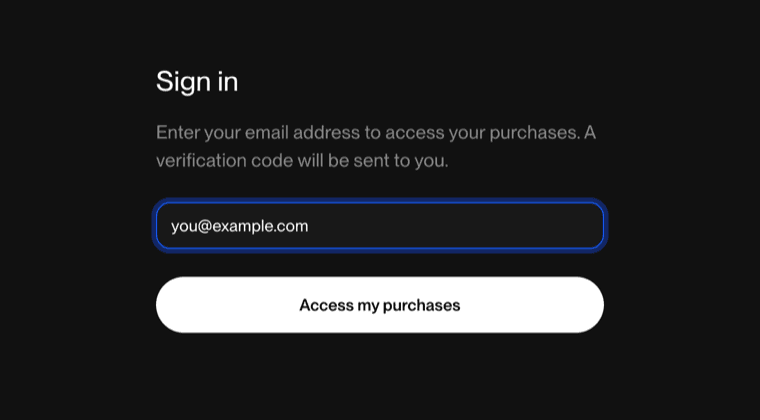
You'll get an email with a verification code. Type it into the portal to sign in. There's no password to remember. If the code doesn't arrive within a few minutes, check your spam folder.
2. Download the files and copy your license key
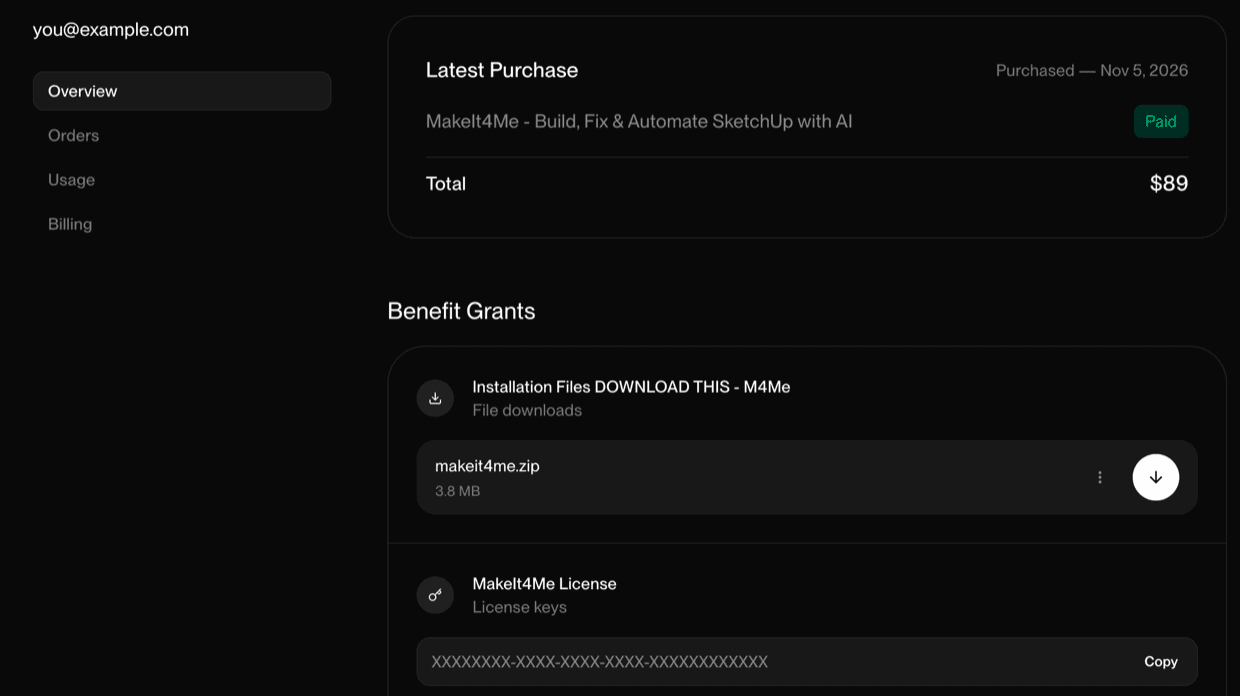
Once you're signed in you'll see your MakeIt4Me purchase and, under Benefit Grants, two items:
- Installation Files: click the download arrow next to makeit4me.zip. This is always the latest version, so it's also how you get updates.
- MakeIt4Me License: your license key. Click Copy next to it. It's the same key you used on your first computer.
3. Install it like you did the first time
Unzip makeit4me.zip and open INSTALL_GUIDE.pdf inside it. Follow it exactly as you did on your first computer: install the SketchUp extension, then connect the AI app you use on this computer.
The first time MakeIt4Me starts on the new computer, SketchUp shows a box titled MakeIt4Me — Enter license key. Paste the key you copied from the portal and click OK.
Questions
How many computers can I use MakeIt4Me on?
Up to 3 at a time with one license. Every computer uses the same key, so you don't need a second purchase for a laptop and a desktop.
I'm replacing a computer. How do I move my license?
On the old computer, click Extensions › MakeIt4Me › Reset license before you retire it. That frees its slot. Then follow the steps above on the new one.
If the old computer is already gone, sign in to the customer portal, find your license key and remove the computer you no longer use from its list of activations.
It says my license has no slots left.
All 3 slots are in use. Remove one you no longer use from the customer portal as described above, then enter the key again.
I can't find the email with the code, or I don't remember which email I used.
Email support@makeit4me.net from any address and say roughly when you bought it. We'll find your order.